Inventory Module
The Inventory section of your dashboard gives you a complete view of your salon's stock, organized by category and product line, with tools to review stock levels and place restock orders. Using the Inventory Module, you can:
- Monitor your product usage and stock levels directly within Vish, keeping everything in one place
- Gain valuable insights into usage patterns and calculate ideal stock levels to streamline ordering and minimize waste
- Order precisely what you need, reducing overstock and unnecessary expenses
Contact inventory@getvish.com to activate your inventory module.
Once activated, follow the steps below.
Inventory Setup
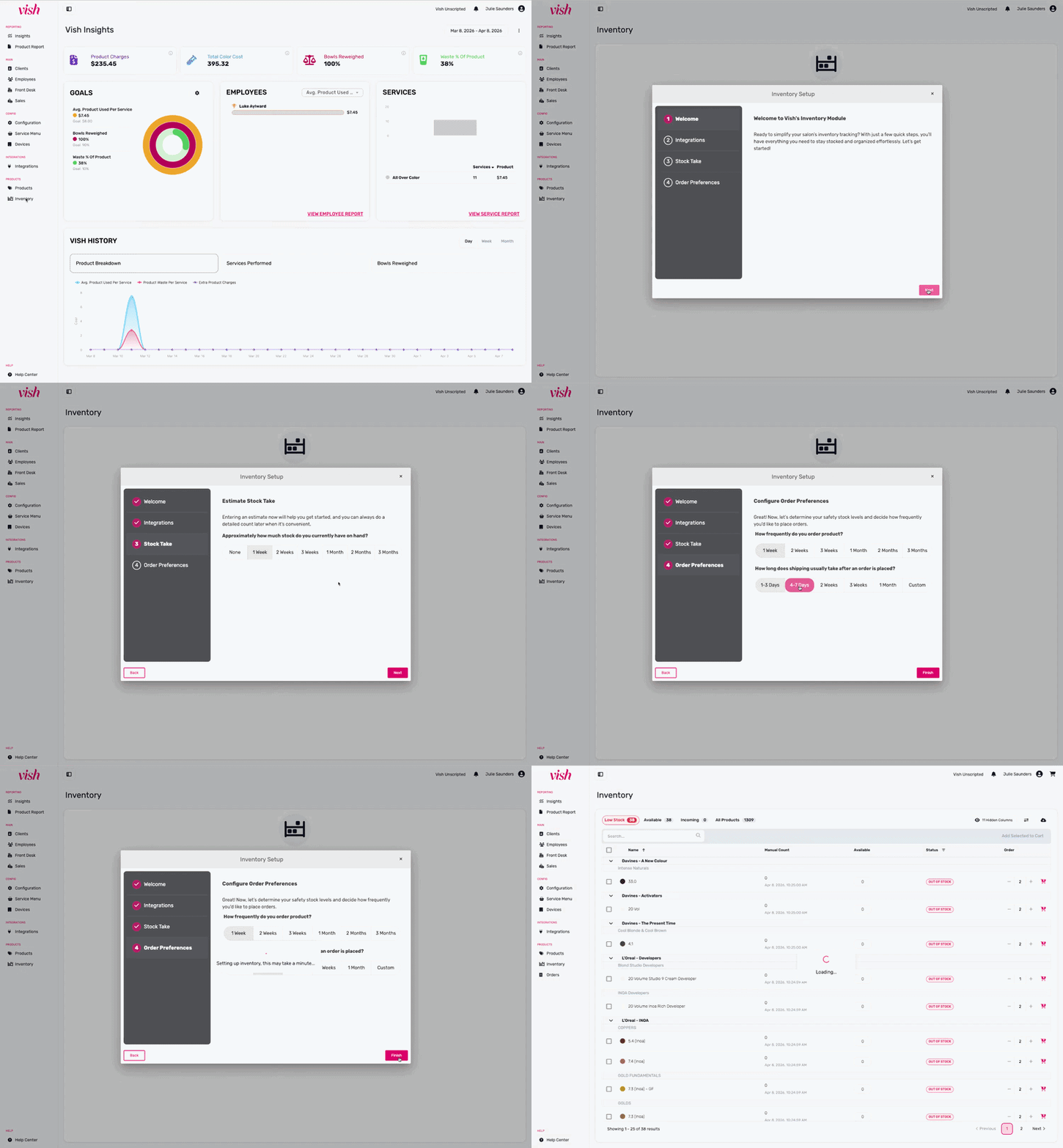
- Accessing Inventory: Navigate to Dashboard → Inventory on the left-side menu.
- Complete the Onboarding Wizard: The onboarding wizard will guide you through essential setup steps:
Add SalonInteractive Credentials (optional)
- If your salon uses SalonCentric products and you are in the United States of America, enter your SalonInteractive credentials.
- If you don't have a SalonInteractive account, click here to sign up for a free account. Please ensure the email address for your SalonInteractive account matches your SalonCentric account.
- Note: Salons outside the USA or those not using SalonCentric products can skip this step.
Estimate Your Stock on Hand
- Provide an estimate of how many days your current stock will last if you place no further orders.
- Vish will use this information to calculate your stock levels based on your product usage data.
- Don't worry, you can perform a manual stock count after you enter the module to ensure accurate data.
Set Your Order Preferences
- Indicate how frequently you typically place orders.
- Specify how long it usually takes for your orders to arrive.
- Note: You can update these preferences at any time.
Navigate the Inventory Table
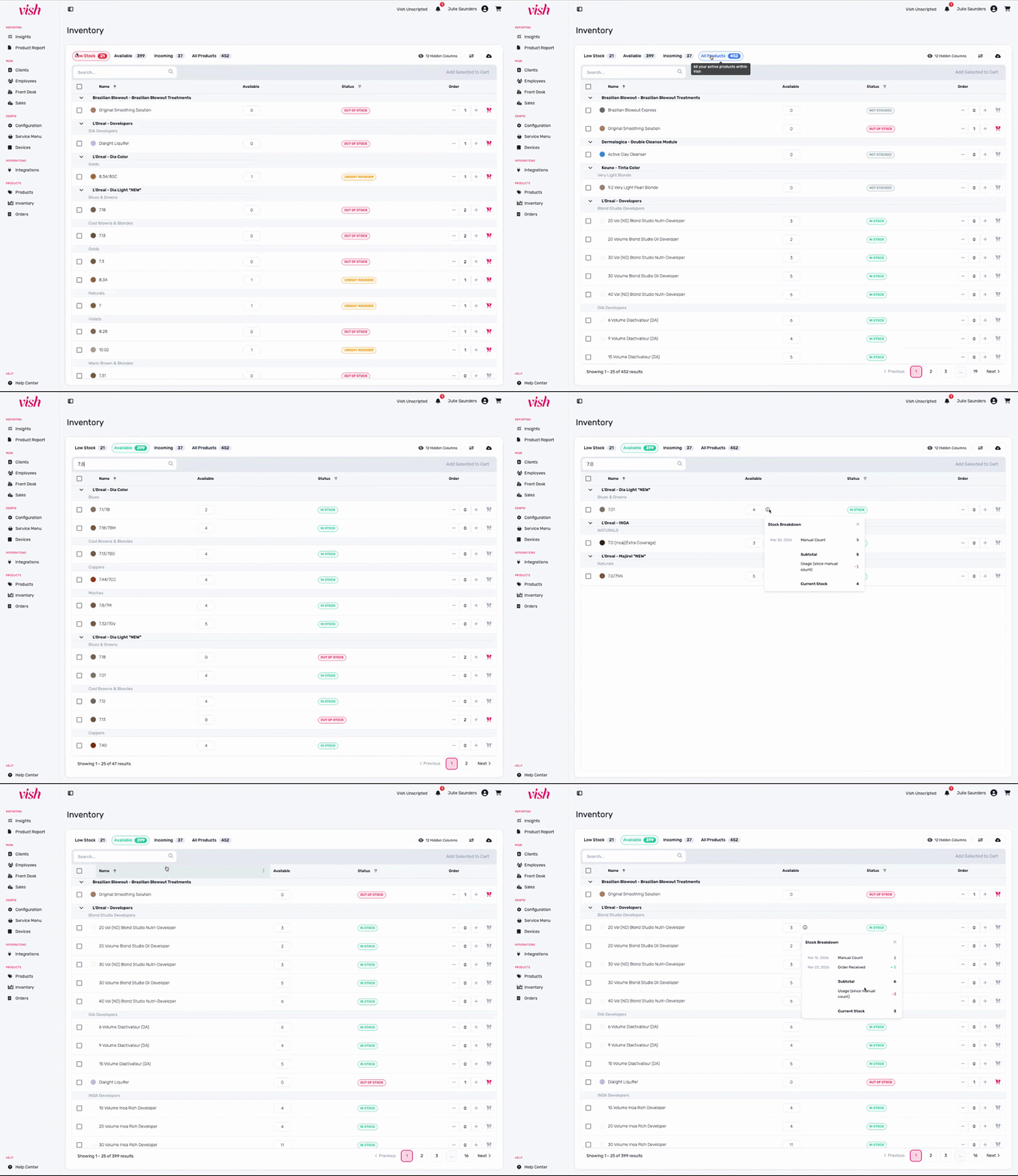
Quick Filters:
The Inventory Table offers four quick filters to help you view your products efficiently.
- Low Stock (default): Shows products that need reordering.
- Available: Displays products that have been used in the Vish Color Bar app or have manual stock count data.
- Incoming: Shows products that have been ordered but not yet received.
- All Products: Lists every product in your Vish catalog.
To use a filter, simply click one of the boxes at the top of the Inventory Table.
Search:
Easily search for products in the table.
- Use the search bar to find specific products by manufacturer, product line, or product name.
- The search is all-inclusive, and results are immediately shown in the table.
- Notice that the numbers in the quick filter boxes will update dynamically based on your search results.
Understanding Table Columns:
Products are grouped by category and product line. The category header stays frozen as you scroll, so you always know where you are. By default, the Inventory Table includes the following columns:
- Name: Shows the product name and product line.
- Available: The current stock count for the product. This is where you would enter your initial stock take. Click on the "i" next to any Available count to see the Stock Breakdown — a full activity log showing the manual count, usage since last count, and received shipments, so you always know exactly how a number was reached.
- Status: Displays the stock status of the product:
- In Stock: Stock is greater than or equal to the max stock level required
- Not Stocked: The product has no usage data, therefore we assume it’s not on your shelf
- Out of Stock: Stock is zero
- Urgent Reorder: Stock is below the min level, even when considering products on order
- Replenish: The product's stock plus any products on order is between the min and max levels. Think about replenishing but it’s not crucial
- Order: Enter a quantity here to add the product to your cart.
Additional columns are available to display if needed.
Note: Manual Stock is read-only. It shows when Available was last manually updated. Use the Available column for your complete, working stock count.
Order Preferences:
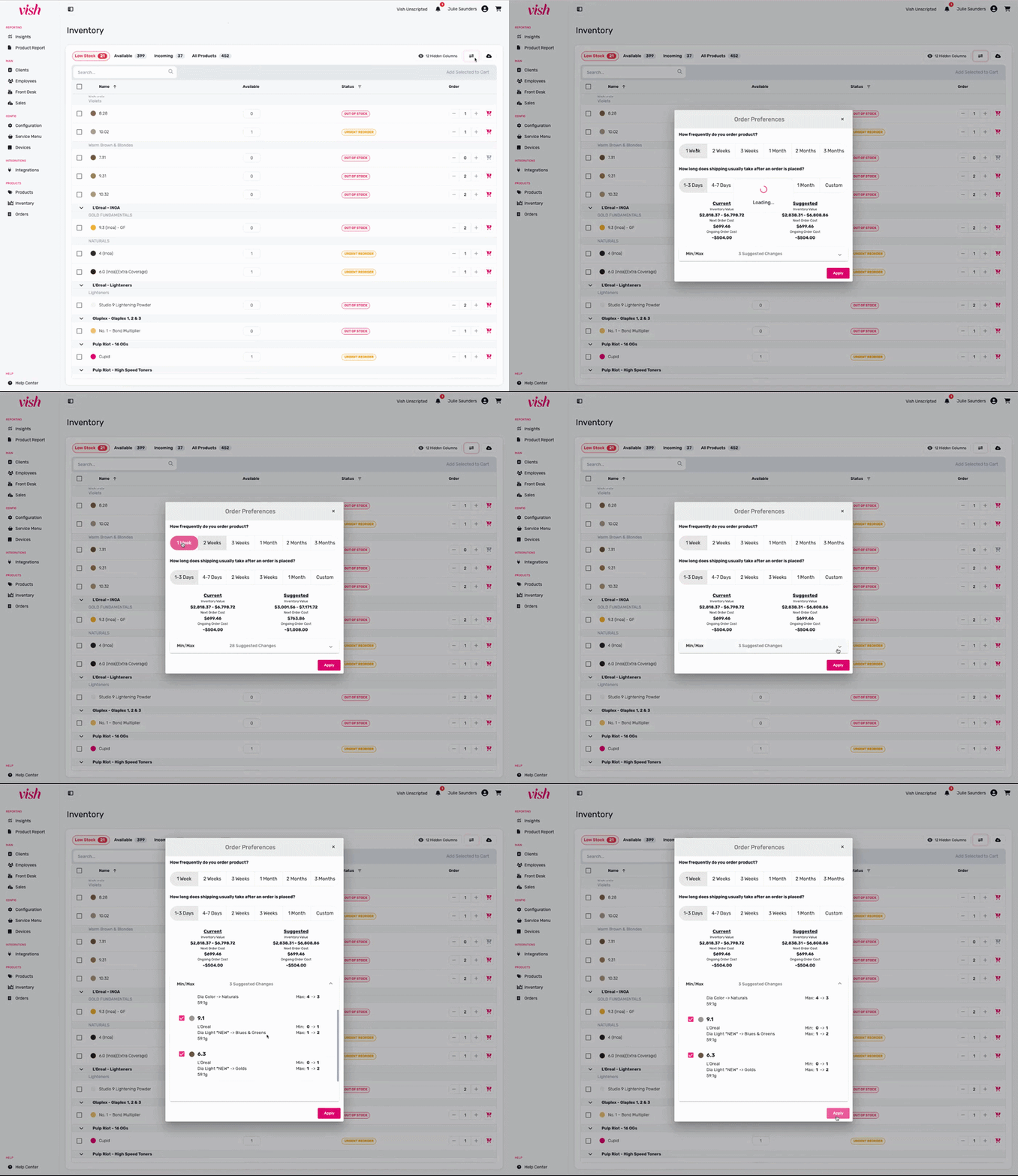
The icon at the top of the table is where you change your order preferences. You can also view any updates to the Vish recommended minimum and maximum levels based on product usage or seasonal trends.
In Order Preferences you can:
- Review updated order preferences.
- See recommended changes to minimums and maximums.
- Apply changes to update your recommended stock levels.
Perform a Manual Stock Take
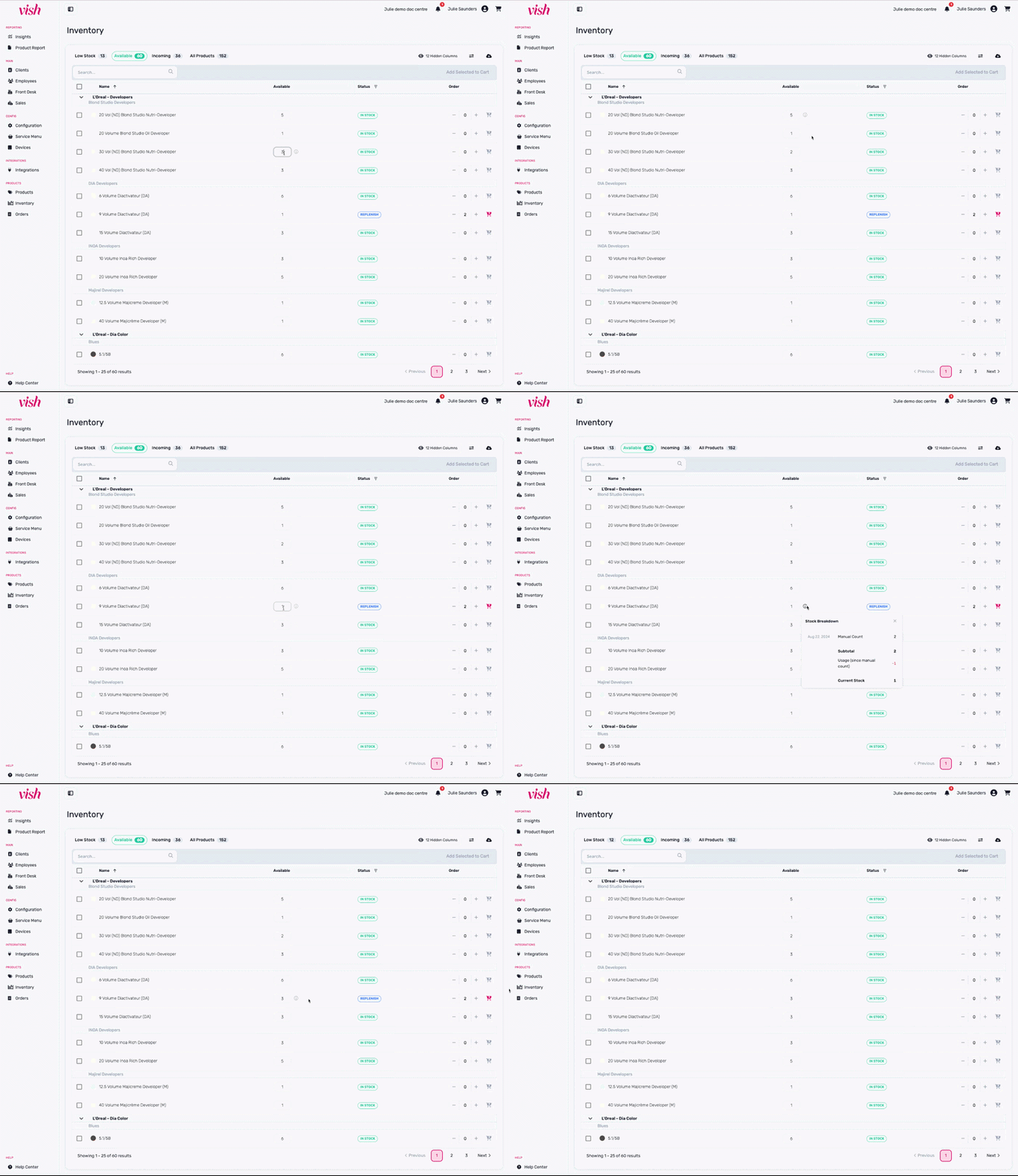
Why Take a Manual Stock Count?
While Vish estimates your stock levels during set-up based on past usage, taking a manual stock count ensures that your inventory calculations start with the most accurate information possible.
How to Take a Manual Stock Count:
- Click on the Available number beside the product name.
- Enter the accurate stock quantity that's on your shelf
- Repeat this for all products on your shelves.
Helpful Tips:
Count Full Tubes: We only count whole tubes. If you have containers with some product left in them, we advise not counting those in your Stock Count to maintain accuracy.
Can’t Find a Product? Use the quick filters at the top of the table. If the product hasn't had usage yet, it might only appear under "All Products"
Removing Unused Products: If you see products in the table that you no longer carry, consider inactivating them from your Vish system to keep your inventory table clean and accurate. Here's how to inactivate a product.
Create an Order
There are two ways to create an order:
- Manual Order: Ideal for salons outside the USA or those not using SalonCentric products. This generates a PDF or Excel purchase order that can be emailed or printed.
- SalonCentric Order: If your salon is integrated with SalonCentric through SalonInteractive, this will directly populate your SalonCentric cart for seamless ordering.
Manual Order
- Find Products: Navigate to the Inventory Table and locate the products you want to order.
- Add to Cart: Enter the desired quantities in the table and click Add to Cart for each product.
- Open Shopping Cart: Click the cart icon to review your order.
- Review Order: Make any necessary edits to the product quantities.
- Finalize Order: Click Submit Order at the bottom of the Order Summary to change the status from Prepared to Submitted.
- Export Order: Open the order by clicking on the row in the Orders tab. Select Export Order to download the purchase order as a PDF or Excel file if you need to email or print it.
SalonCentric Order
- Find Products: Navigate to the Inventory Table and locate the products you want to order.
- Add to Cart: Enter the desired quantities in the table and click Add to Cart for each product.
- If you add an unavailable SalonCentric product to your cart, you'll see an "Out of Stock" or "Inactive" warning before placing your order. You can move it to a manual order if you'd like to purchase it another way.
- Open Shopping Cart: Click the cart icon to review your order.
- If you have any products that are not purchased through SalonCentric, the Shopping Cart is split into a Manual Order and an Integrated (SalonCentric) order.
- Review Order: Make any necessary edits to the product quantities.
- Submit Order: Click Submit Order to send the order to your SalonCentric cart. If you have any Manual Order products, the Manual Order will need to be submitted in Vish.
- Finalize in SalonCentric: The SalonCentric cart will open in a new window.
- Add any discounts or promotions through your SalonCentric rep if applicable.
- Submit the order using your billing information on file with SalonCentric.
- If SalonCentric ships fewer products than you ordered (for example, you ordered 12 bottles but only received 10), Vish will automatically update the order and show the difference. You can adjust the order to match what actually arrived, so your inventory counts stay accurate.
Export Your Inventory
Click Export to download the current table view as an Excel file.
- The export includes only the columns currently visible
- The Manual Count field is read-only
Frequently Asked Questions
Why can't I find a product? The default table view is Low Stock, meaning that products that don't need ordering won't appear here. Switch to Available or All Products to find any item in your catalog.
Why can't I edit the Manual Count? Manual Count is read-only by design. Use the Available column for your complete stock count. Manual Count shows when Available was last manually updated.
What does "Incoming" mean? Incoming items have been ordered but not yet received, impacting the Order Quantity field. To remove them, navigate to Orders and receive the shipments or consolidate your orders.
Why does my product show "Out of Stock" or “Inactive”? SalonCentric has flagged this product as out of stock or inactive in their online catalog, allowing you to find an alternative before placing your order.
My received quantities don't match what was shipped. What should I do? Use the reconcile option on the order to update the quantity to match the actual packing slip, and Vish will adjust your On Order count accordingly.
What happens if I get an error when placing an order through SalonCentric? If you get an error while placing an order through SalonCentric, it usually means your connection has expired and needs to be re-authenticated. When this happens, simply log back in with your SalonInteractive credentials through Vish to reconnect the integration. Wherever possible, your in-progress order will be preserved so you can continue without starting over.
Navigate the Orders Table
The Orders Table in Vish provides an organized view of all your inventory orders and their statuses. Here's how to navigate and make the most of this table.
Understanding Table Columns: By default, the Orders Table includes the following columns:
- Created: The date the order was prepared.
- Items: The total number of items in the order.
- Subtotal: The subtotal of the order, excluding tax, shipping, and other add-ons.
- Supplier: Identifies the supplier (SalonInteractive or blank for manual orders).
- Supplier Order ID: The order number from your supplier (SalonInteractive or other).
- Submitted: The date the order was submitted to SalonInteractive or when the Submit Order button was pressed in Vish.
- Received: The date the order status was manually updated to received.
- Status: Indicates the current order status:
- Prepared: Order was created but not submitted.
- Submitted: Order was submitted to SalonCentric or another distributor.
- Shipped: Order has shipped (SalonCentric-specific status).
- Partially Received: Some items from the order have been received.
- Received: The entire order was received.
Quick Filters: The Orders Table offers six quick filters to help you view your orders more efficiently based on their status.
Viewing Order Details
Click on any row in the table to open the Order Summary. From the Order Summary, you can download the Purchase Order as a PDF or Excel file.
Receive an Order
Keeping your inventory up to date is crucial, and accurately receiving orders ensures that stock levels are correct. Here's a simple guide to receiving orders in Vish.
Navigate to the Orders Tab and locate the Order to Receive:
If all products in the order have arrived, Receive the entire order. There are multiple ways:
- Select the pink checkmark box (Mark as Received)
- Open the order by clicking on the row, select Receive All, select Confirm.
Partially Receive an order. If only some products have arrived:
- Open the order by clicking on the order row
- Manually adjust the quantities received for the specific products delivered. A search and sort field in the Order screen makes it easy to find specific line items when receiving.
- Save Order
Updating Received Quantities Post-Confirmation. If you initially marked the entire order as Received but realize some products were missing, you can still adjust the received quantities:
- Open the order
- Update the quantities for the products that weren't received
- Save Order